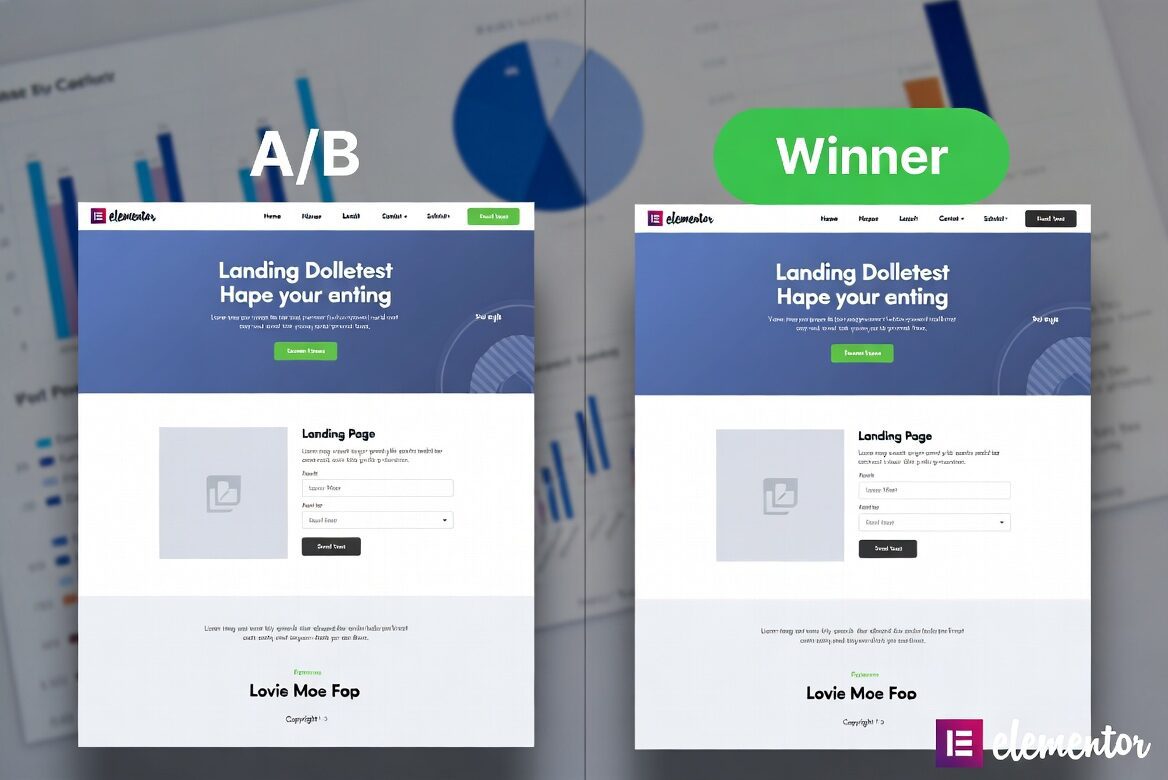
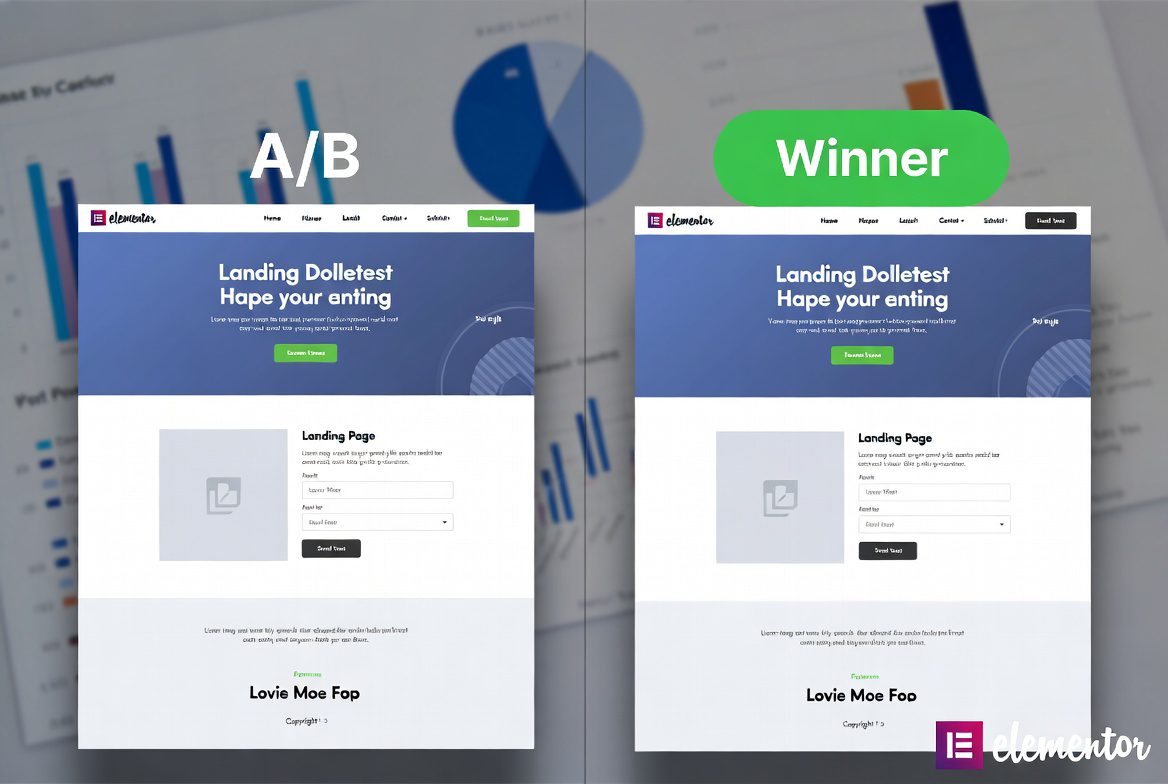
How to A/B Test Any Elementor Page in Under 10 Minutes
Boost conversions, reduce bounce rates, and make data-driven decisions — all without leaving your Elementor editor. In this complete step-by-step tutorial, you’ll learn exactly how to run fast and effective A/B tests on your Elementor landing pages, sections, headlines, buttons, and more.
Whether you’re a freelancer, agency owner, or e-commerce store owner, A/B testing with Elementor has never been easier.
Why A/B Testing Elementor Pages Matters in 2026
Your beautifully designed Elementor landing page might look great — but does it actually convert?
A/B testing (split testing) lets you compare two or more versions of a page or element to see which performs better based on real visitor behavior. Small changes like button color, headline, layout, or CTA placement can increase conversions by 20–300%.
Benefits for Elementor users:
- Make decisions based on data, not opinions
- Improve ROI on ad spend (Google Ads, Meta Ads, etc.)
- Continuously optimize landing pages
- Reduce guesswork in design
Best Tools for A/B Testing in Elementor (2026)
You have several excellent options:
- AB Split Test (Highly recommended) — Native Elementor integration, test anything (sections, elements, full pages), runs on your server.
- Split Test for Elementor (Free + Pro) — Lightweight plugin focused directly on Elementor widgets and sections.
- Nelio A/B Testing — Powerful native WordPress plugin with advanced features.
- Cloud tools like VWO, Optibase, or ABTesting.ai.
For most users wanting speed and simplicity, AB Split Test or Split Test for Elementor get you running in minutes.
Step-by-Step: How to A/B Test an Elementor Page in Under 10 Minutes
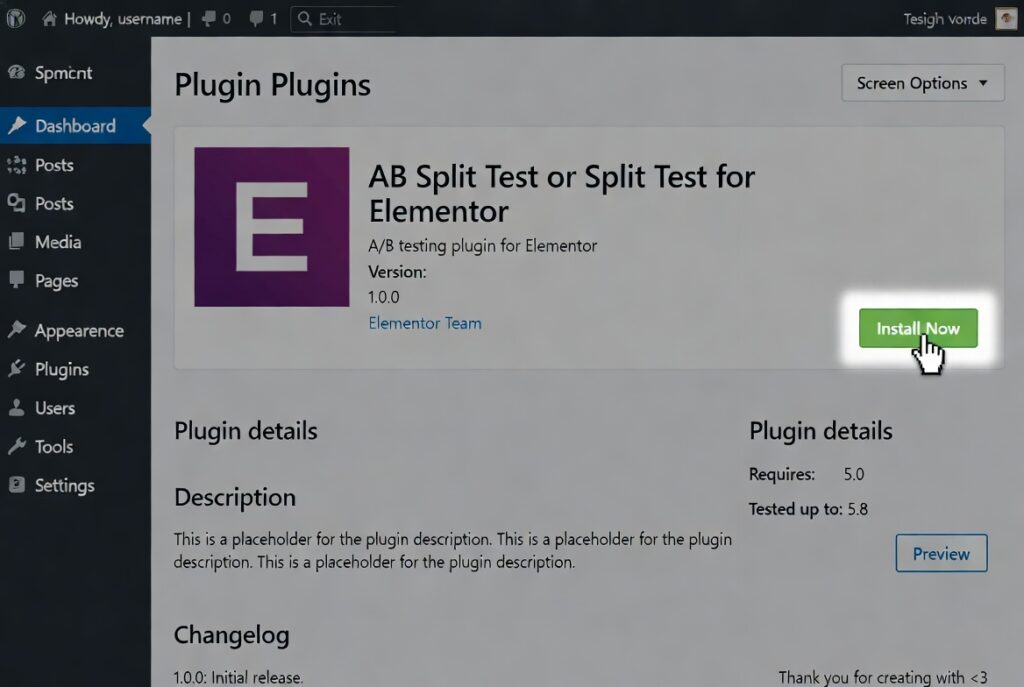
Step 1: Install and Activate the Plugin
- Go to WordPress Dashboard → Plugins → Add New
- Search for “AB Split Test” or “Split Test for Elementor”
- Install and activate
- (Optional) Connect analytics if needed (Google Analytics 4 recommended)

Step 2: Create Your First A/B Test
- Go to the plugin’s menu (usually AB Split Test or Split Tests)
- Click Add New Test
- Give it a clear name, e.g., “Hero Button Color Test – May 2026”
- Choose the test type (Page, Section, or Element)
Step 3: Build Variations Directly in Elementor
This is where the magic happens:
- Open your landing page in Elementor Editor
- Select the element/section you want to test (e.g., headline, button, hero section)
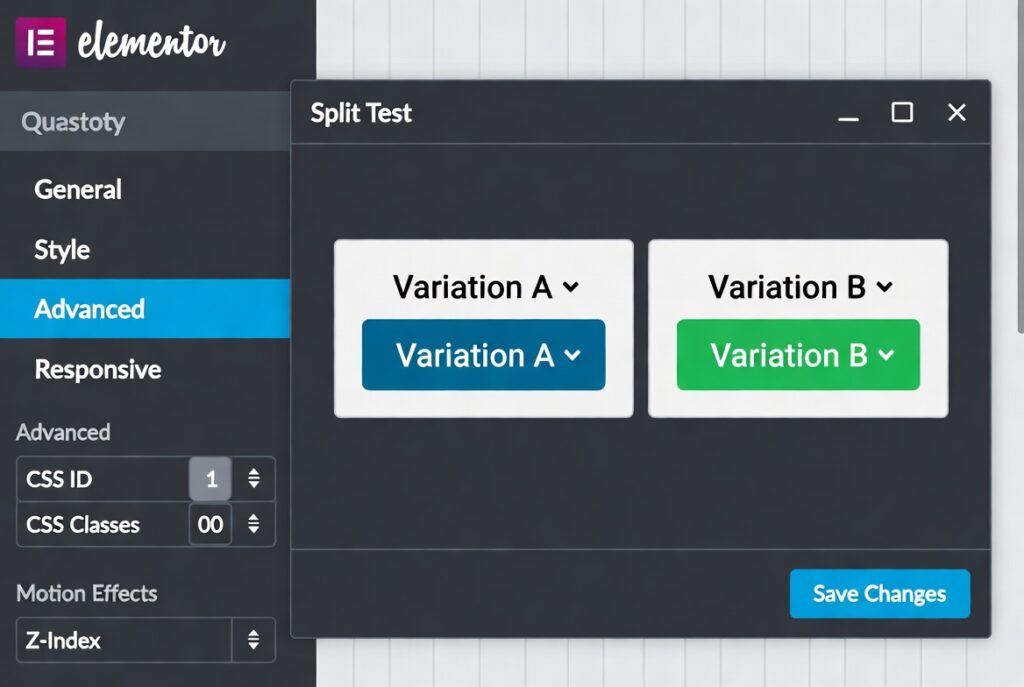
- In the Advanced tab, you’ll see the Split Test option
- Assign it to your test and label the variation (e.g., Variation A – Blue Button, Variation B – Orange Button)
- Duplicate the element/section and make your changes for the second variation
Pro tip: Test only one change at a time (isolated testing) for clear results.
Step 4: Set Conversion Goals
Choose what success looks like:
- Button clicks
- Form submissions
- Page scroll depth
- Add to cart
- Purchase
- Time on page
Most plugins let you track these easily with simple selectors or integrations.
Step 5: Publish and Drive Traffic
- Publish the test
- Share the main URL (traffic will be split automatically)
- Drive paid or organic traffic
- Let the test run for at least 1–2 weeks or until statistical significance is reached
What Should You Test First? (High-Impact Ideas)
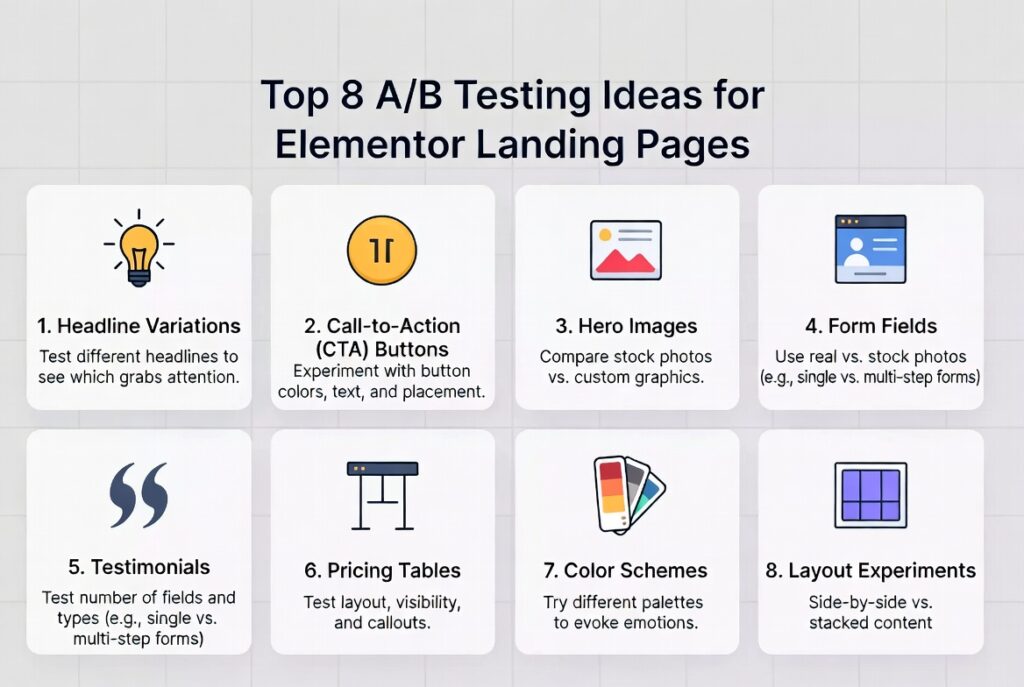
- Headlines (biggest impact)
- Call-to-Action buttons (color, text, size, position)
- Hero section layout (image vs video, trust badges)
- Form fields (number of fields, labels)
- Social proof (testimonials position and quantity)
- Pricing tables
- Above-the-fold content
How to Analyze Results and Declare a Winner
Good plugins show:
- Conversion rate for each variation
- Statistical significance (avoid declaring winners too early)
- Number of visitors and conversions
- Uplift percentage
Rule of thumb: Wait until the test reaches 95%+ statistical confidence and has enough traffic (usually 100–300 conversions per variation).
Once you have a clear winner:
- Apply the winning variation permanently
- Document the result for future reference
- Test the next element!
Common Mistakes to Avoid
- Testing too many things at once (multivariate chaos)
- Ending tests too early
- Ignoring mobile traffic (always check both desktop and mobile)
- Not driving enough qualified traffic
- Ignoring page speed impact
Advanced Tips for Elementor Power Users
- Test Theme Builder templates (headers, footers, archives)
- Use dynamic content and custom fields in variations
- Combine with Elementor AI for faster variation creation
- Run sequential tests (keep improving the winner)
- Integrate with Google Analytics 4 + Looker Studio for deeper insights
Stop guessing what works and start making data-driven decisions. Whether you’re a freelancer, marketer, or business owner, consistent A/B testing will give you a massive competitive advantage.
Ready to optimize your landing pages?
Book Your Free Elementor Landing Page Audit →